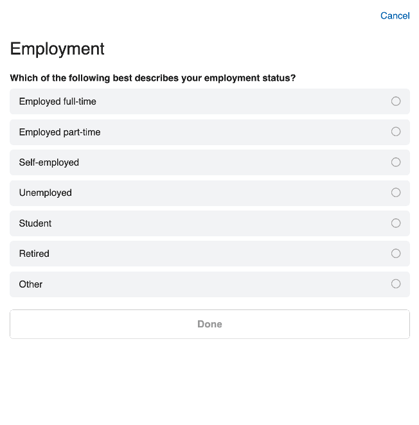
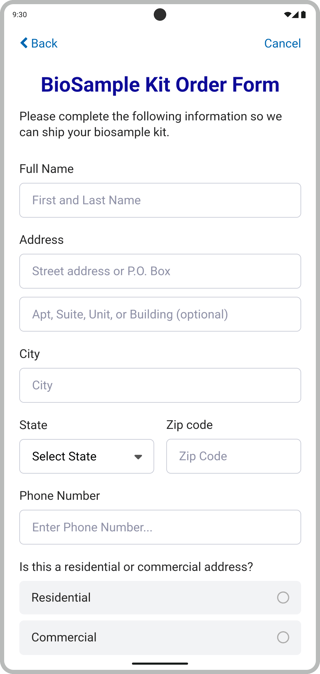
A form step allows you to present multiple questions to the user on a single step.
Basic Properties
The form step has the following properties:
Form Items
Additionally, you can create any number of form items. Form items have "drag and drop" reordering to allow for easy item rearrangement. Each form item has the following properties:
Selectively Hide or Show Form Items
You may conditionally hide or show a form item based on the result of a previous answer in this form or survey, participant demographic data, or custom fields.
- Select "Hide" or "Show", and "If a condition is met" to enable selectively displaying or hiding the form item. By default, all items will be "never hidden".
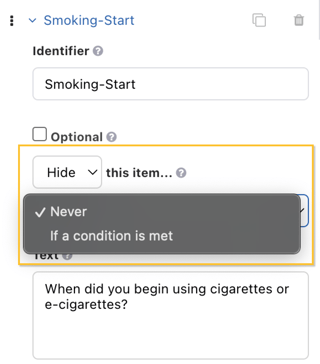
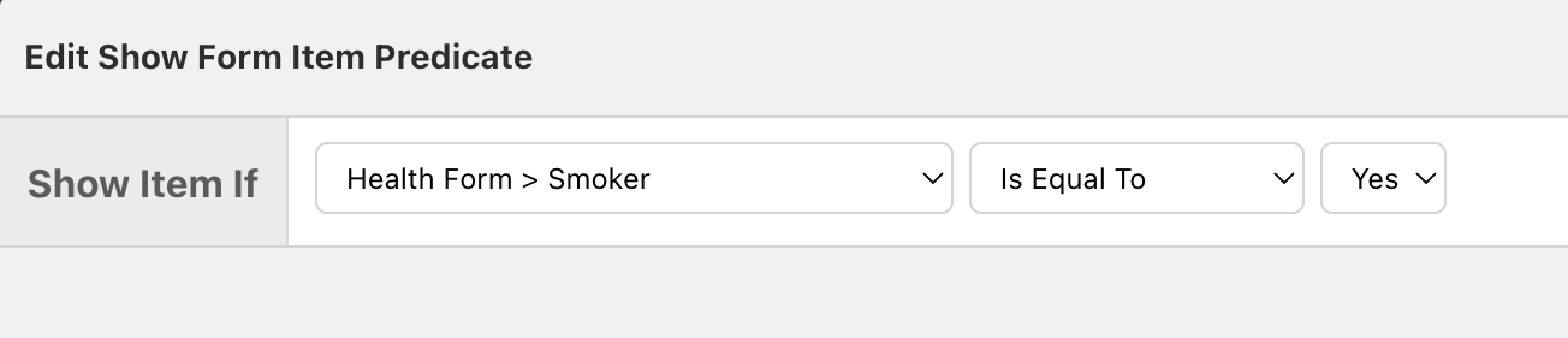
- Select a condition and value from the drop-down menu. This example will show the current form item if the participant answers 'yes' to a previous form item asking if they're a smoker.
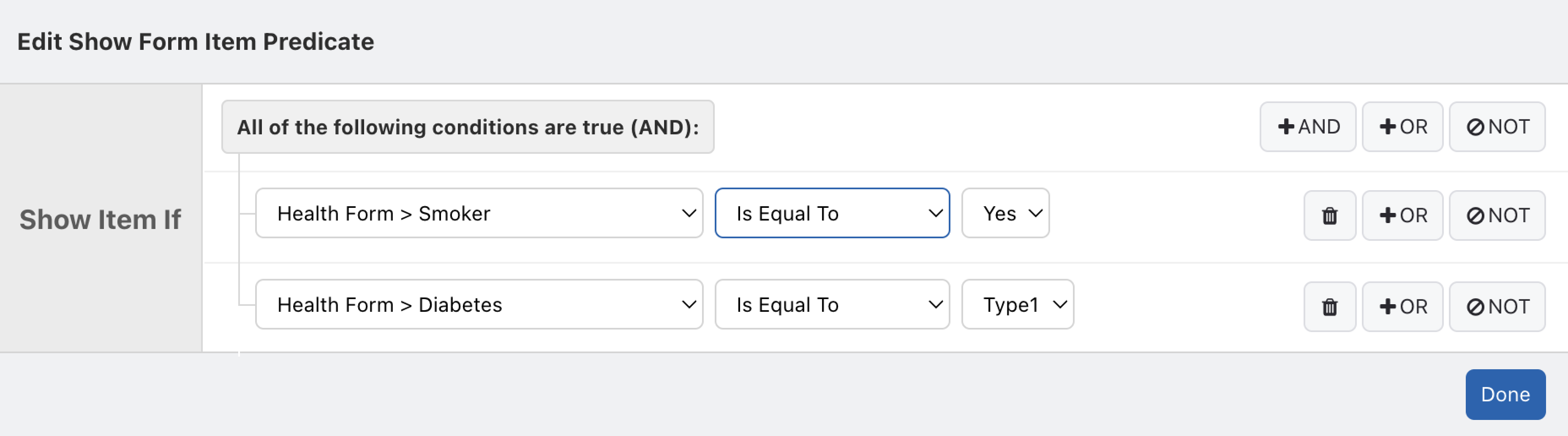
- You may use the "AND," "OR," and "NOT" buttons to create more complex conditions. This example will show the current form item if the participant reported to be a smoker AND has Type 1 Diabetes.
Position and Layout Options
Form Items can be displayed in two ways, with the text either above or to the left of the answer field, depending on the answer format. Additionally, you may allow some items to be displayed horizontally depending on screen width.
Position and layout settings have the following properties.
Some answer formats, such as Scale and Weight, have only one available layout position.

There are numerous ways to configure form item positions depending on your needs. Below are a few quick references for common horizontal configurations, but your configuration may vary depending on the items preceding and succeeding those you would like in a horizontal row. In each case, ensure the "Allow Horizontal Layout" button is checked for all items you are formatting.
- In order to create two equal-size fields in the same row on most phone screens, set both items to a minimum width of 150. Note that on larger screens, if an item directly preceding or succeeding these items is set to a width of less than 350, all three may appear on the same line.
- In order to create two equal-size fields in the same row on wider screens (such as desktop web browsers), but separate rows on a phone screen, set both items to a minimum width of 300.
- In order to create three equal-size fields in the same row on wider screens (such as desktop web browsers), but separate rows on a phone screen, set all three items to a minimum width of 200.
Example: Other (Please Describe)
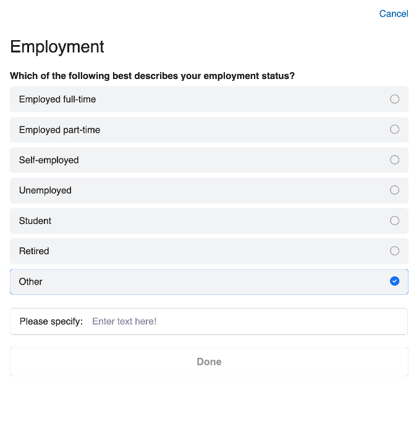
Having a write-in option for a response of "other" is fairly common within a survey. You can follow the steps outlined below to add this functionality.
-
Create a Form Step and add your question as a Form Item with all of the possible text choice options.
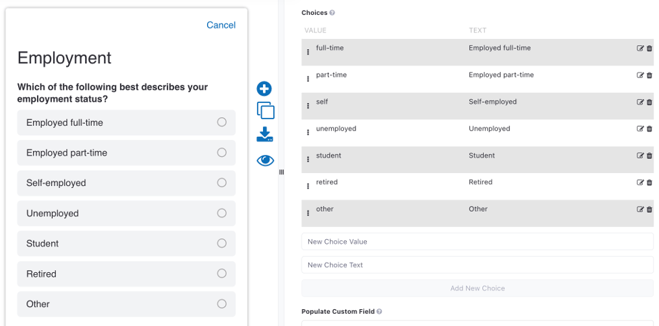
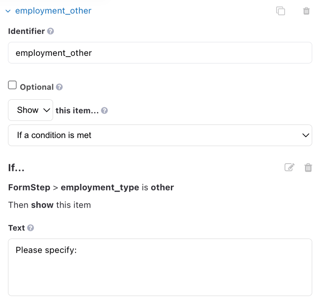
- Create a second Form Item to take the text for the "Other" option. You'll want to add logic to show this Form Item if the previous Form Item is "Other". When someone selects "Other", then the logic will be true and this Form Item will be displayed.
- Test to make sure it is working as expected with the Try It Out feature!