
After you’ve published a survey, you can share your survey with the wider community of researchers using MyDataHelps Designer's survey library.
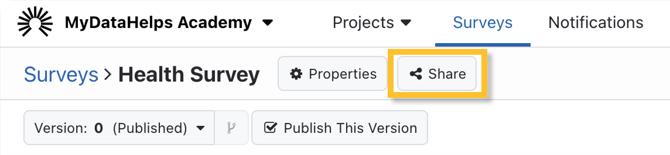
From the survey editor, click on the "Share" button.
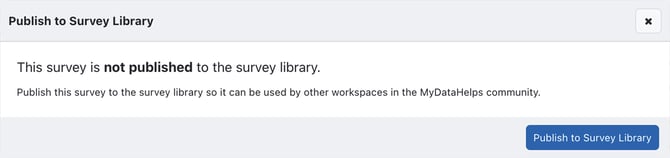
 If the survey hasn't yet been shared, click Publish to Survey Library to access the sharing settings.
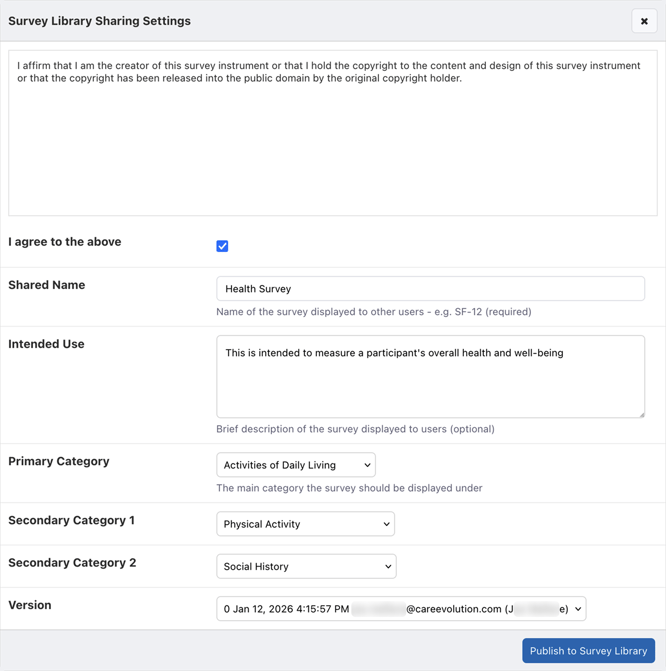
Ensure you agree to the presented terms of sharing surveys in the survey library (essentially that you have the rights to share the content) and enter some additional information about your survey. You may also specify a particular version to share. Once you click "Publish to Survey Library" your survey, it will immediately become available in the MyDataHelps survey library for others to import.
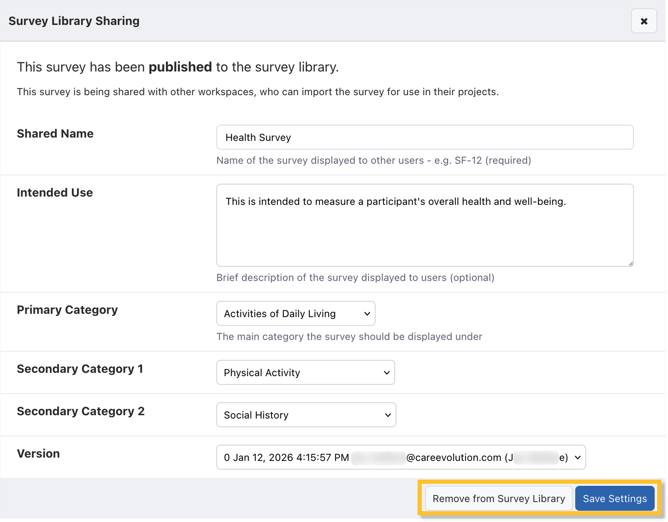
You can update the shared version, other sharing settings, or stop sharing your survey at any time by clicking on the “Share” button again from the survey editor. Make any changes to the survey settings and click "Save Settings". To stop sharing, click “Remove from Survey Library”. Note that anyone who has already imported your survey will be unaffected—they will “keep” the version of the survey they have imported to their project.
The version history for your survey is not included when you share a survey in the MyDatahelps survey library.