
For more information on how to determine which schedule actions you may need for your project, as well as an advanced schedule example, see the Scheduling Playbook article.
Add Survey to Deliver
Use the “Add Survey To Deliver” action to deliver a published survey to a participant.
If participants already have the selected survey, the existing survey will be closed and a new one will be delivered. This has no effect on the participant experience, but is captured in the data export.
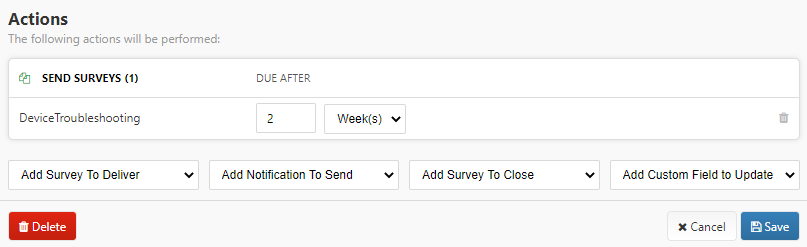
Due Date
The “Due After” option sets a survey due date by specifying how long a participant has to complete it. The “Never Due” option means no due date is set. Surveys which are not completed by their due date to not automatically close. Surveys can be set to close via a schedule. Due dates can also be used to send notifications via schedule or sort the order of Survey Tasks in the App Designer.
Add Notification to Send
Use the “Add Notification To Send” action to send a push notification, SMS message, or email to the targeted participants. Select from notifications that are defined and published in the notification library.
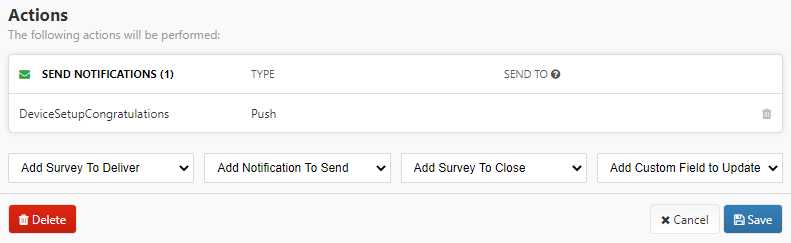
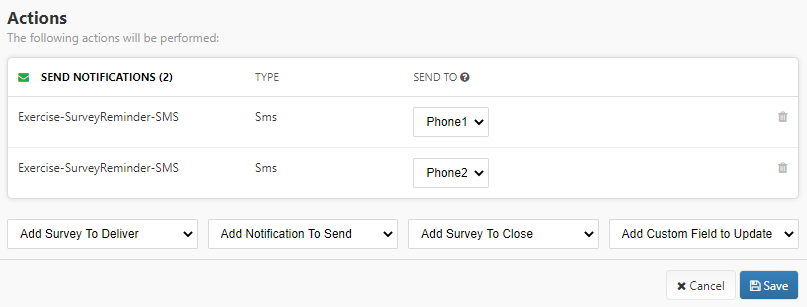
There may be instances where you need to send an SMS notification to multiple phone numbers, or an email notification to multiple email addresses. To accomplish this, first you need to create custom fields with a data type of phone or email. Once the custom fields are defined, you can add the notification under the schedule actions as many times as necessary and select which custom fields to use.
Add Survey to Close
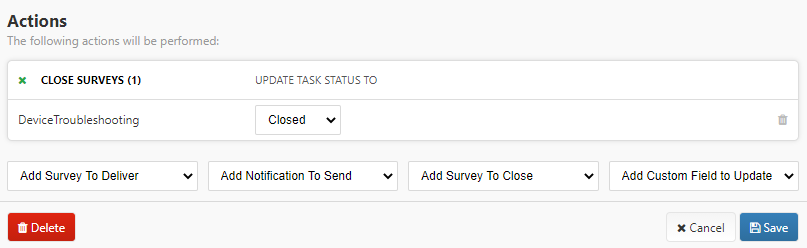
Use the “Add Survey To Close” action to set the status of “Incomplete” surveys to either “Complete” or “Closed.” Once a survey is closed, it is no longer available for applicable participants to complete.
Any survey tasks with status “Complete” or “Closed” at scheduled time will be unaffected by this action. To better understand the different survey statuses, visit the Viewing and Closing Survey Tasks article.
Add Custom Field to Update
Use the “Add Custom Field to Update” category to populate a previously defined custom field when the schedule triggers. Depending on the custom field type (e.g., Text, Date, etc.), you can update your custom field to a variety of values using schedules - see the table below for more details.
When using expressions in schedules to update custom fields, the expression does not need to be contained within <%=>
and %, - this formatting is only required when coding expressions into surveys or notifications. Additionally, expressions must be enabled by CareEvolution. Contact us if expressions are not working in your surveys or notifications.
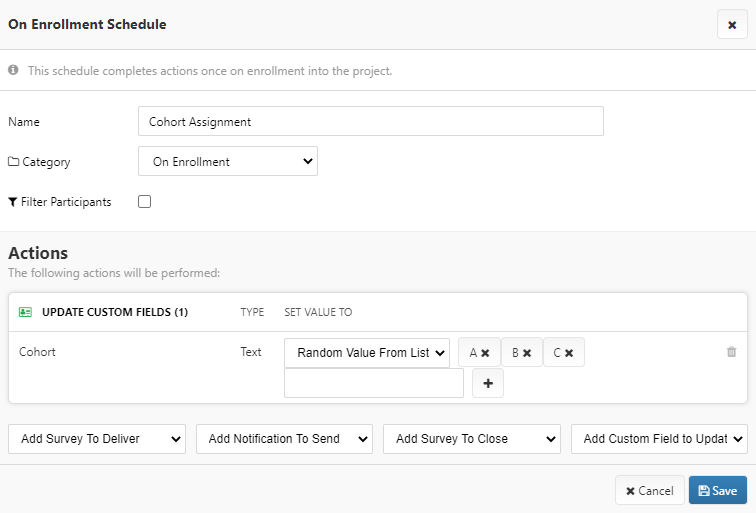
The example schedule below randomly assigns each participant to either cohort A, B, or C on enrollment.
Add Webhook to Call
If you have configured a scheduled webhook, you can add a call to it as an action for your schedules. Please refer to the webhook article for more information.
Schedule Action Order
In most scenarios, the order in which schedule actions run for a particular schedule is irrelevant. However, for scenarios where the action order may matter, schedule actions run in the following order:
-
Set Custom Field
-
Close Survey
-
Send Survey
-
Call Webhook
-
Send Notification
For example, if your schedule sets a custom field value that is then piped in a notification sent by the same schedule, the custom field will be updated before the notification is sent.