
Creating an Account
Registering an account is easy. Just visit the registration page.
When creating an account, you'll be prompted for your name and email.
We discourage shared accounts. Your username and password should be unique to yourself and should not be shared with anyone. MyDataHelps Designer allows multiple users to access a single workspace.
Once your workspace has participants in it, you are required to set up multi-factor authentication for added security. We require multi-factor authentication to protect against unauthorized access to your participants' data.
Multi-Factor Authentication
Multi-factor authentication (MFA) is an important tool for protecting your MyDataHelps Designer account from unauthorized access. This section will review the necessary steps to enable multi-factor authentication.
Configuration
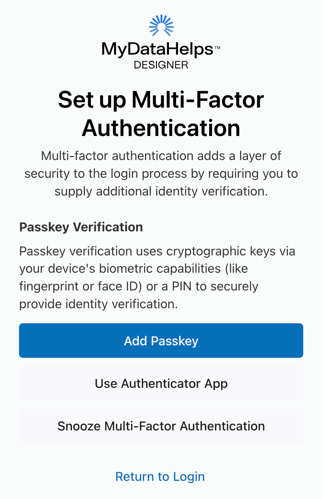
After setting your password and security questions during account registration, you'll be prompted to enable multi-factor authentication. You can choose from a few different options:
-
Add Passkey: Select this option if you'd like to add a passkey for your device or password manager. When you log in with your email and password, you'll be prompted to use your passkey.
-
Use Authenticator App: Select this option to use an authenticator app that will generate a 6-digit codes. When you log in with your email and password, you'll be prompted to enter the current 6-digit code in your app. See the "Authenticator App" section below for further details.
- Snooze Multi-Factor Authentication: If your account will not yet have access to participant data, you have the option to snooze your multi-factor authentication until later.
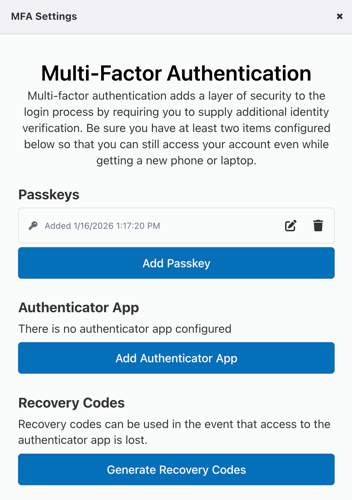
You can configure one or more Passkeys and an Authenticator App for your account to ensure you maintain access and do not require a manual account reset.
When logged in to MyDataHelps Designer, you can access your current MFA Settings from the Settings menu in the top, right corner.
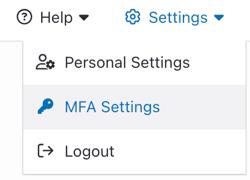
Here you can add or remove passkeys, add or remove an authenticator app, and generate new recovery codes.
Authenticator App
- Download and install an authenticator app on your mobile device. There are many such apps available, and any one will work. Google Authenticator is a common choice, available for free on iOS or Android.
- When prompted in the authenticator app, you may either scan the barcode or enter the manual alphanumeric code from your MyDataHelps Designer profile page. These codes are personalized for each user, so you must use the codes from your account, not the sample below.
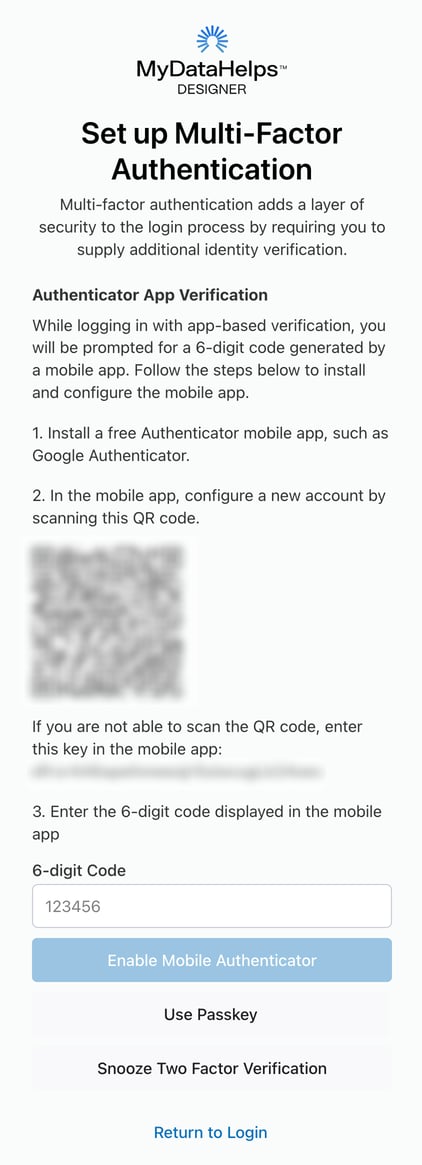
- The authenticator app will now show MyDataHelps Designer in the apps list, with a numeric key code that changes every 30 seconds.
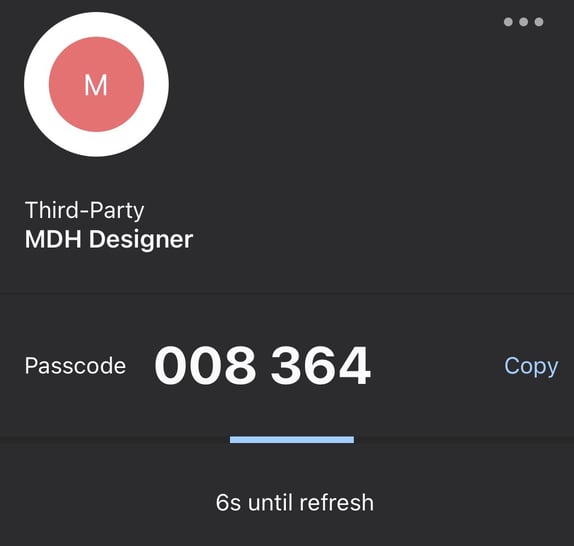
- Enter the current code into the verification prompt in your MyDataHelps Designer profile page. Multi-factor authenticatoin is now enabled.
- Be sure to record and save your Recovery Codes. If you ever lose your device or access to your authenticator application, you'll need a recovery code to regain access to your account.
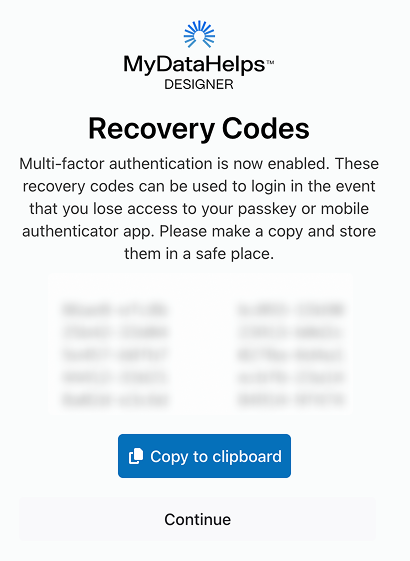
When multi-factor authentication is enabled, MyDataHelps Designer will prompt you to enter the code from your authenticator app the next time you log in.
If you enable "Remember me for 30 days" on the login screen, you will not need to enter a code again for 30 days, as long as you're using the same computer and browser. Otherwise you will need to enter the code from your authenticator app every time you log in.
Updating your Authenticator or Passkey
If you obtain a new device or authenticator app, you'll need to update your multi-factor authentication:
- In MyDataHelps Designer, click Settings in the top right and then MFA Settings.
- Remove your the Passkey or Authenticator app which you no longer have access to.
- Add a new Passkey or Authenticator app, following the steps outlined above.
Recovering an account
If you cannot access your authenticator app, have no available passkey, and did not save your recovery codes (for example, if you lost your phone or uninstalled the app), you will not be able to log in to MyDataHelps Designer. Contact support to recover your account.
Resetting MyDataHelps Designer Password
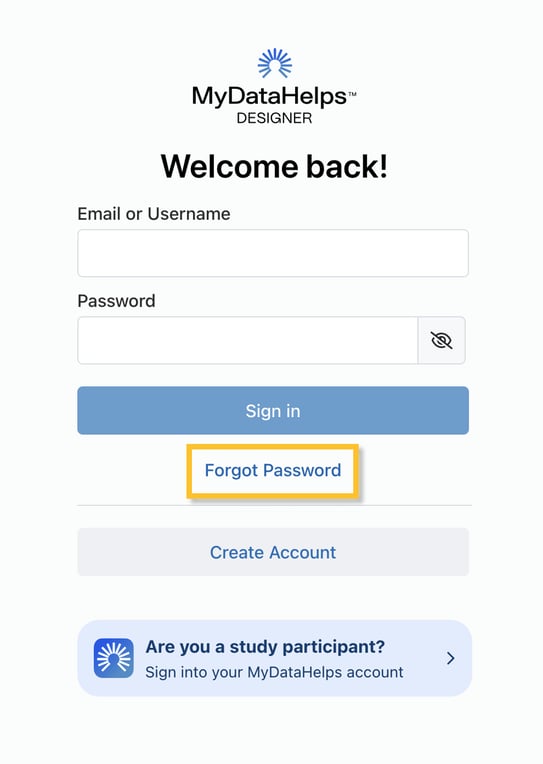
If you already have an MyDataHelps Designer username and need to reset your MyDataHelps Designer password, click the "Forgot Password" link on the MyDataHelps Designer login page. Enter your username on the next screen and follow the instructions to reset your password.
Blinded Mode
It can sometimes be beneficial for MyDataHelps Designer users not to see identifying demographic information about participants when viewing the Participants Tab. For example, in research involving highly sensitive topics—such as studies on stigmatized diseases or conditions—maintaining participant privacy is especially important. In these cases, using Blinded Mode can be a valuable option, as it hides common demographic fields within MyDataHelps Designer.
To use Blinded Mode in MyDataHelps Designer, navigate to "Settings" in the upper righthand corner of the screen and select "Personal Settings" from the dropdown menu. 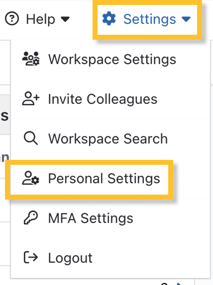
From there, toggle to "Blinded Mode" and select "Enable."
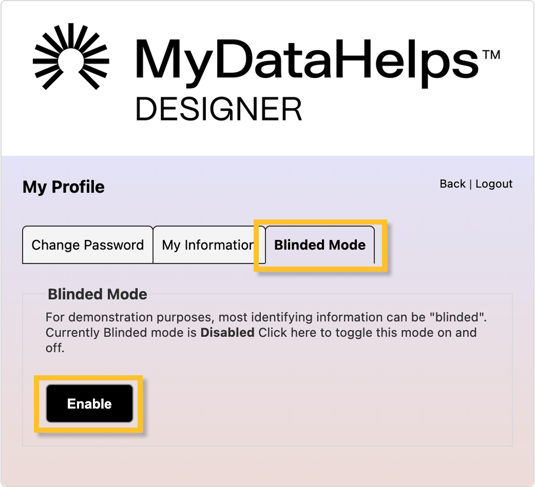
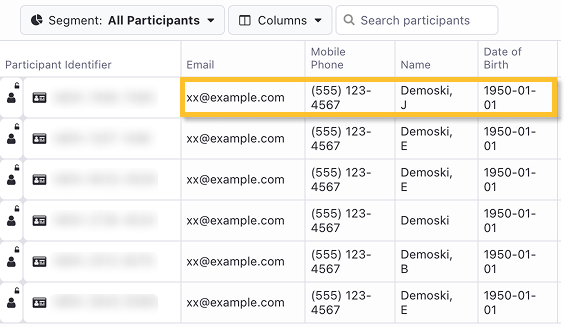
Once "Blinded Mode" is enabled, all common demographic fields within MyDataHelps Designer will appear generic.
Blinded Mode is a temporary state and can be disabled at any point by selecting "Disabled" within "Personal Settings" following the steps above.