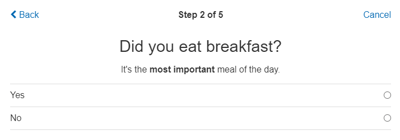
You can format your surveys (e.g., add bold/italic text, lists, and hyperlinks) by adding special formatting codes. MyDataHelps Designer leverages GitHub Flavored Markdown & HTML to provide a wide range of formatting capabilities which can be performed without extensive coding experience using the built-in rich text editor.
Markdown is supported for:
- Step Title (except for Consent Steps)
- Step Text
- Step Detail Text
- Footnote
- Choice Text
- Choice Answer Description Text
HTML is supported for:
- Web View Steps
- Consent Step Title
- Consent Document Title
- Consent Document Section Content
- Consent Steps
- Step Text (limited support)
- Step Detail Text (limited support)
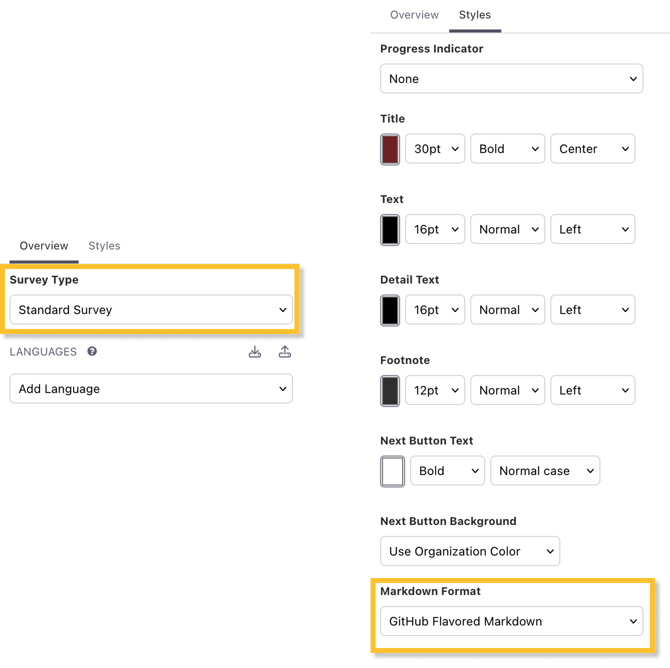
To enable the most robust formatting features, ensure your survey is of type Standard Survey and that the selected Markdown Format is GitHub Flavored Markdown.
GitHub Flavored Markdown
Once enabled, surveys using GitHub Flavored Markdown can utilize a wide range of markdown formatting to create a rich survey experience without the need for complex coding. Listed below are some of the most common applications of GitHub Flavored Markdown used in MyDataHelps, but all inputs listed in GitHub's specification are available.
Lists are only supported in multi-line fields, not titles and other inline text.
Examples
By creatively using GitHub Flavored Markdown, you can create highly visual survey steps with no coding required. The following examples show what is possible using this functionality.
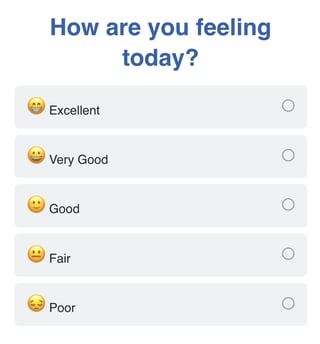
With a Text Choice Answer Format, you can insert images like emoji directly into the answer to help illustrate each option.
Built-In HTML Classes
When using GitHub Flavored Markdown to insert HTML code into steps, you can leverage pre-built classes as basic components. If you want more control over the style and formatting, you should use a Web View Step.
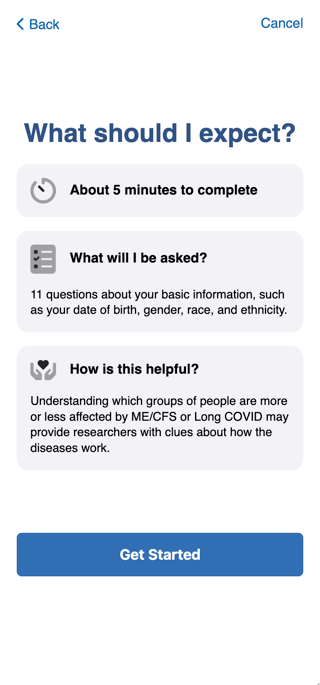
You can build an Instruction step with the above classes using the code below. Paste this code into the Text field of the step, and your step will look like the image below.
```html

About 5 minutes to complete

What will I be asked?
11 questions about your basic information, such as your date of birth, gender, race, and ethnicity.

How is this helpful?
Understanding which groups of people are more or less affected by ME/CFS or Long COVID may provide researchers with clues about how the diseases work.
```
Rich Text Editor
With GitHub Flavored Markdown enabled, you can edit the Text or Detail Text of a survey step within a robust rich text editor. To access the editor, click the associated button above a Text or Detail Text field.
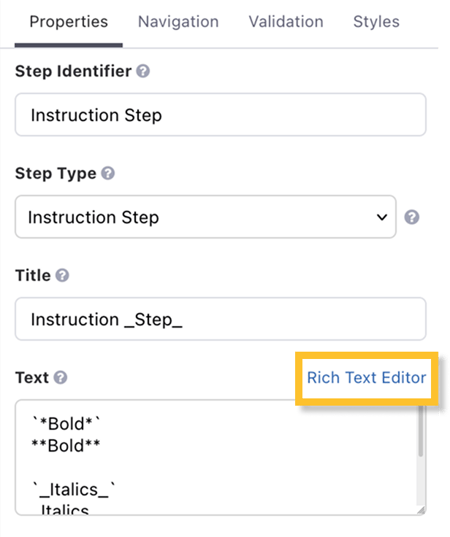
In order to access the rich text editor and enhanced markdown functionality, a survey must have a survey type of "Standard Survey".
Formatting your text in the Rich Text Editor works similarly to other document editors. The buttons across the top allow you to format selected text, such as marking it as bold or strikethrough. You can also designate various levels of headings, insert images, code blocks, and indented quotations.
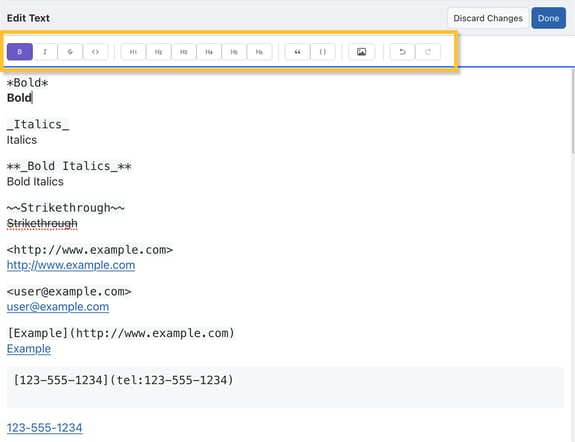
If you already have text formatted in a Word file or Google Doc, you can copy and paste it directly into the editor.
HTML
Note: This is not a comprehensive list of all HTML commands, but rather covers the most common needs.
Below is an example of using HTML formatting for a Consent Step:

[Legacy] Basic Markdown
Surveys which have not yet been updated to use GitHub Flavored Markdown still have access to simple formatting tools using basic markdown. Only the formatting shown in this table is supported in this mode.
Markdown links should only be used in survey text and detail text (as opposed to titles and footers).
For example: Setting the step text to "It's the **most important** meal of the day." will be displayed as: