
In addition to this article, we strongly recommend visiting the MyDataHelps Data Guide, a GitHub repository with example notebooks and queries for making the most of the MyDataHelps export database.
Overview
To use the Export Explorer, navigate to your project's settings, then click on Export Explorer from the list on the left hand side.
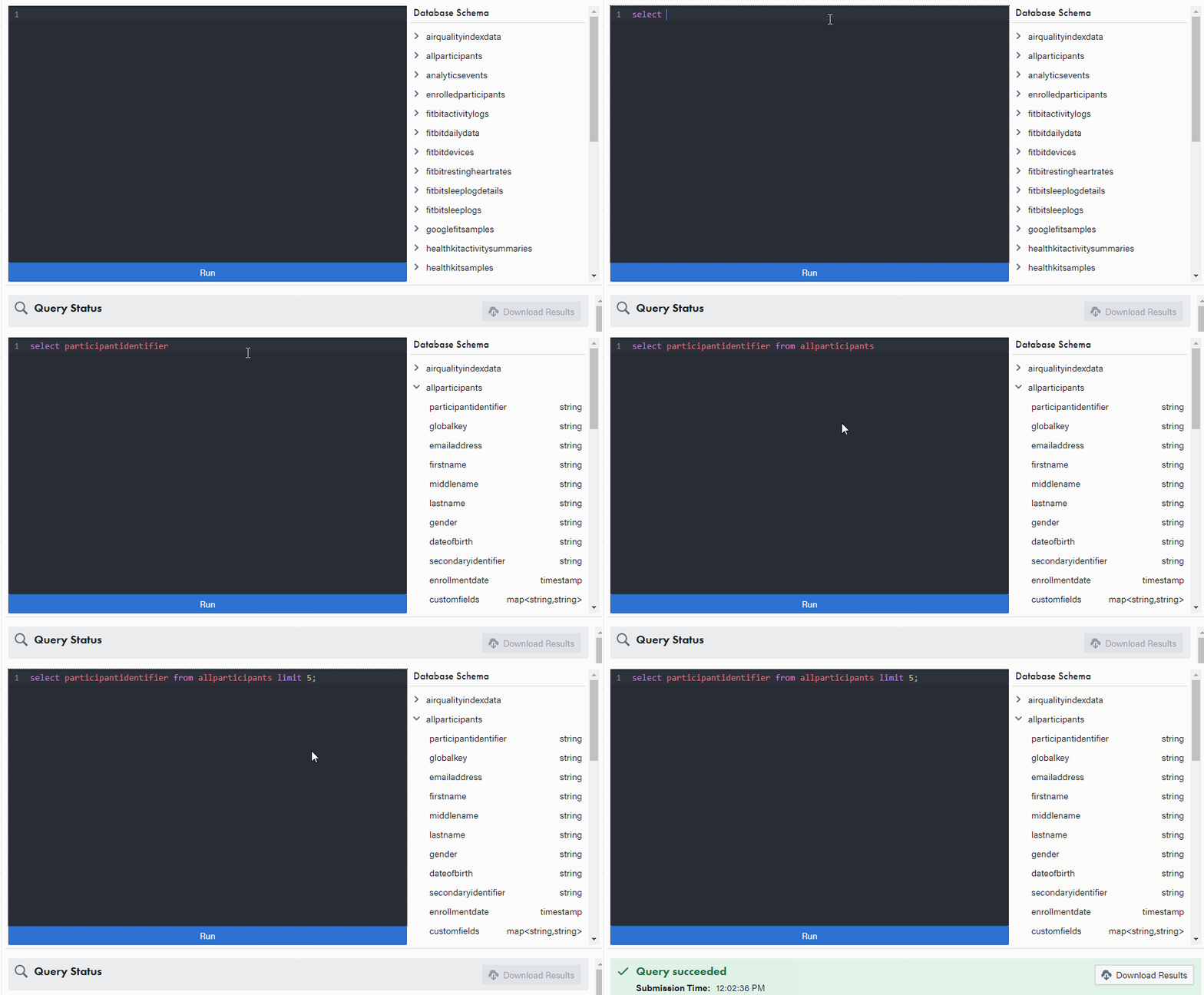
The Export Explorer supports Amazon Athena SQL version 2, which has many functions available to help you query your data. To get started, write a SQL select statement and click “Run.” This will execute your query and show the results.
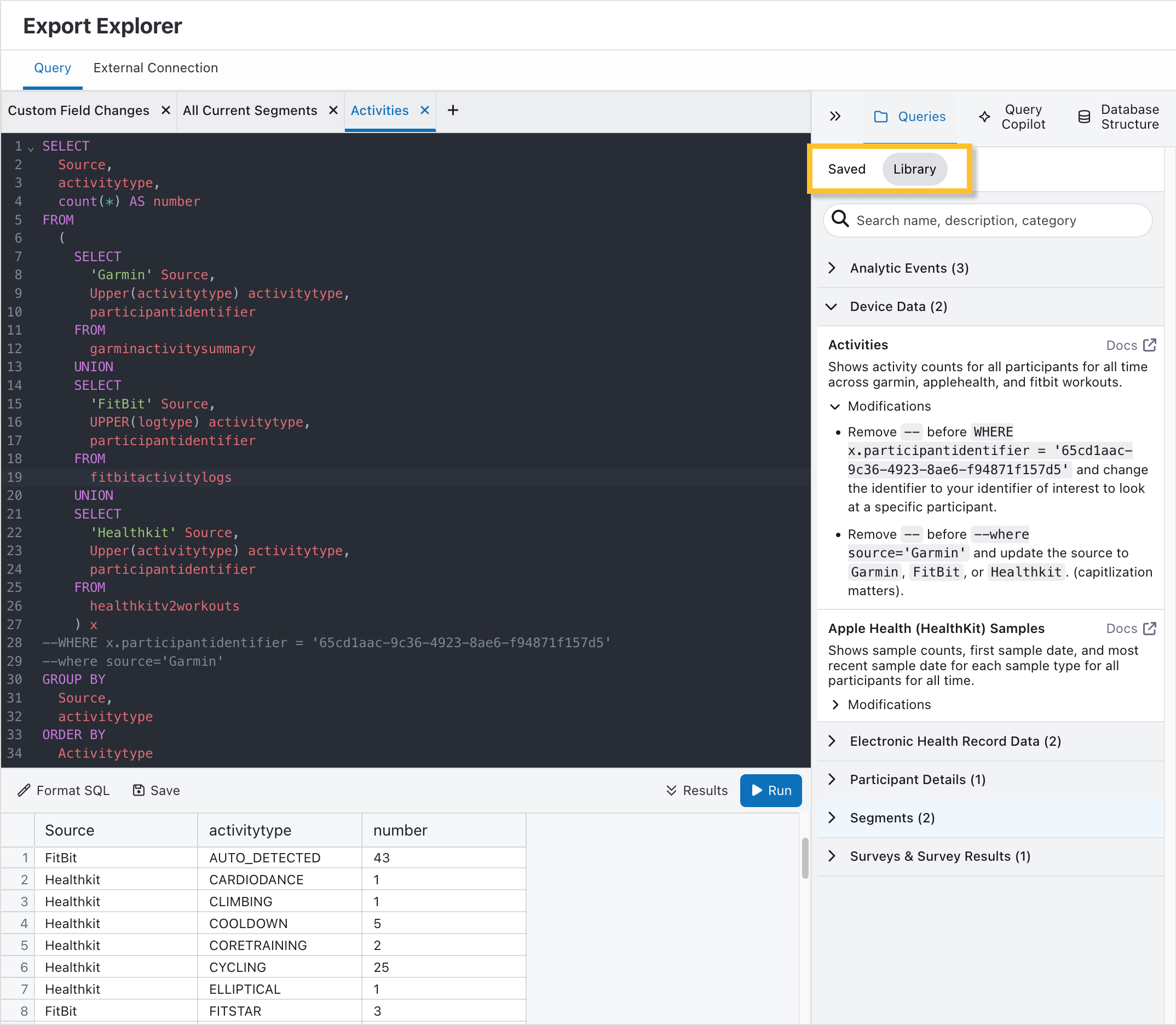
There are a few key components to the Export Explorer:
Tabbed Queries
You can create different tabs with different queries and results, quickly toggling between them. Select "+" at the top of query window to create new query tabs. Click "x" to close them.
Format SQL
Click the Format SQL button to quickly auto-format your SQL query.
Save
Click the Save button to save your query to run again. You can provide a Name, Category, and Description. Additionally, you can elect to make the report available on the Reporting tab.
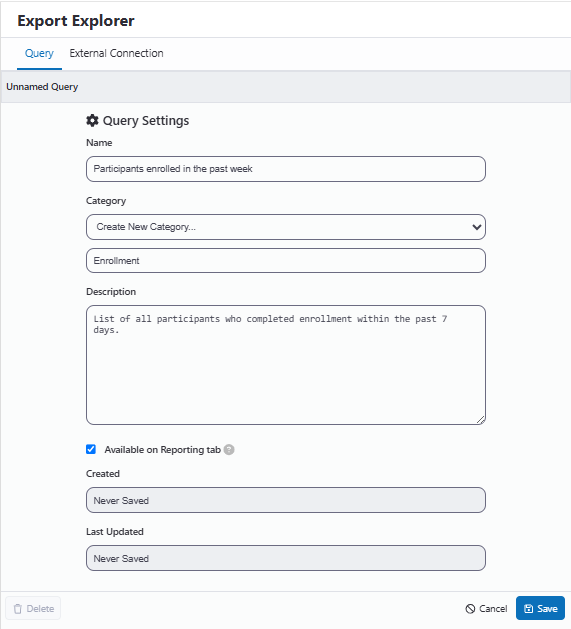
After saving, the query will be available under the Queries tab in the right sidebar.
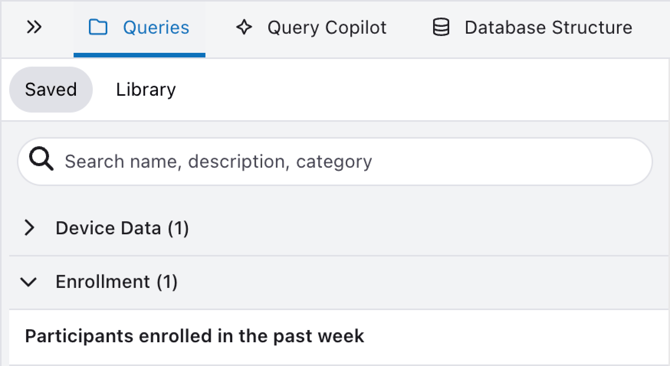
If you want to make any edits to your query, you can click Save again to overwrite it or Edit Settings to adjust the Name, Category, and Description.

Query Library
The Query Library contains common queries focused on participant and project management.
Query Copilot
Query Copilot uses AI to help you use the Export Explorer—no SQL experience necessary. Ask your project data questions in plain English and it will return SQL queries for you to run.
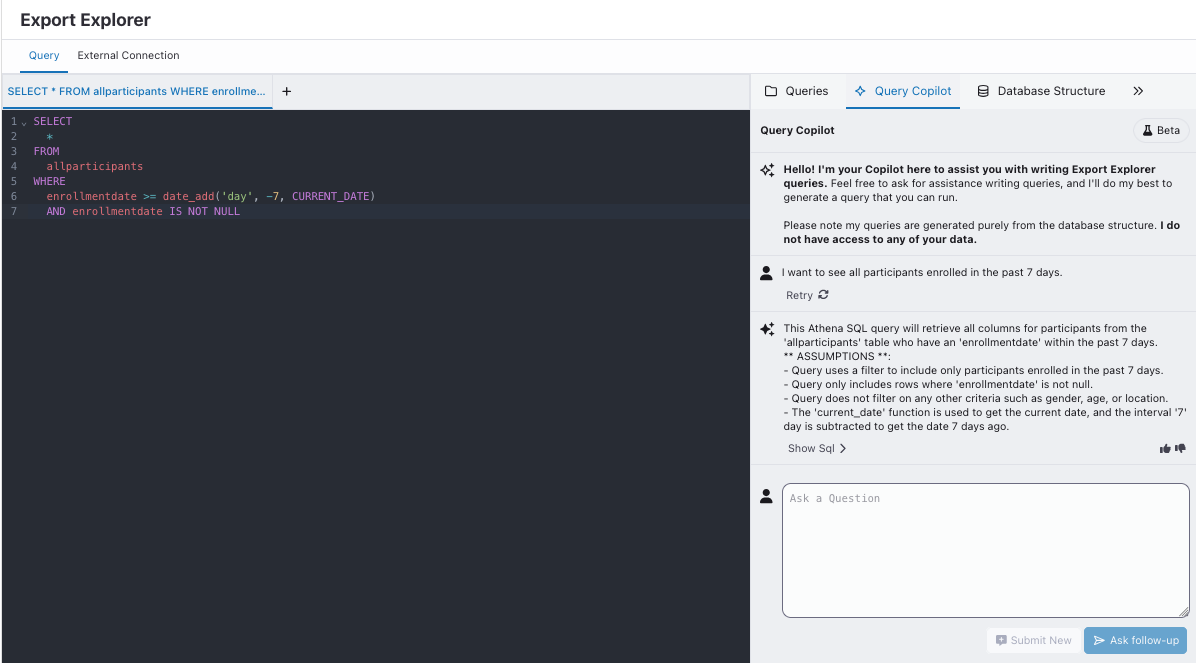
- Copilot does not have access to participant data or query results.
- Be as specific as possible in your prompts. Specify the exact name of a survey and for wearable data, specify the data source (e.g., Fitbit).
- After copilot generates a query, you need to click “Run”.
- Export Explorer results are only up to date as of your last export.
You can try some of the following example Query Copilot prompts:
- How many participants completed “Baseline_Survey”?
- Give me a list of all participant survey tasks, their delivery dates, and completed dates.
- How many participants have connected a Fitbit, and of those participants, how many have sleep data?
- Show me the number of participants who have any mention of ‘diabetes’ in their EMR data, grouped and sorted by age decade.
Database Structure
This tab shows the database tables available in your project. Any of the tables in this schema can be used in a from statement, and clicking on a table or its columns will insert it into your editor window. Expanding a table will reveal the columns in the table along with the columns’ data types.
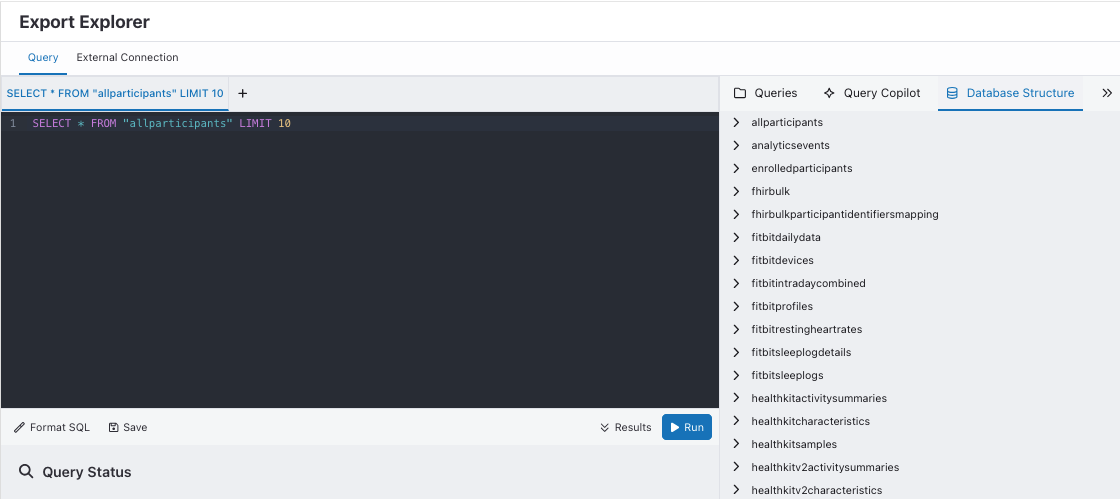
The default example query in the editor is only an example and may not work for all projects. While many projects export the allparticipants model, the query will fail if the table is not present in your project’s database schema.
In addition to the columns documented on data exports, each table contains a _provenance column, which contains metadata about every record. This metadata includes information about the origination of the record, including the source export identifier and date range.
Additional query features of Export Explorer include:
Processing History
In addition to the tables containing data from exports, the export database provides a history of all exports processed. This table is named processing_history and can be found alongside other tables.
This table contains a row representing each time any export model is successfully updated in the database. Its natural key is the tuple of model_key and modified_time. A meaningful surrogate key is model_key, processed_key, and lock_time.
It is insufficient to use model_key and processed_key as the natural key of this table because the export database may process an export more than one time.
External Connection
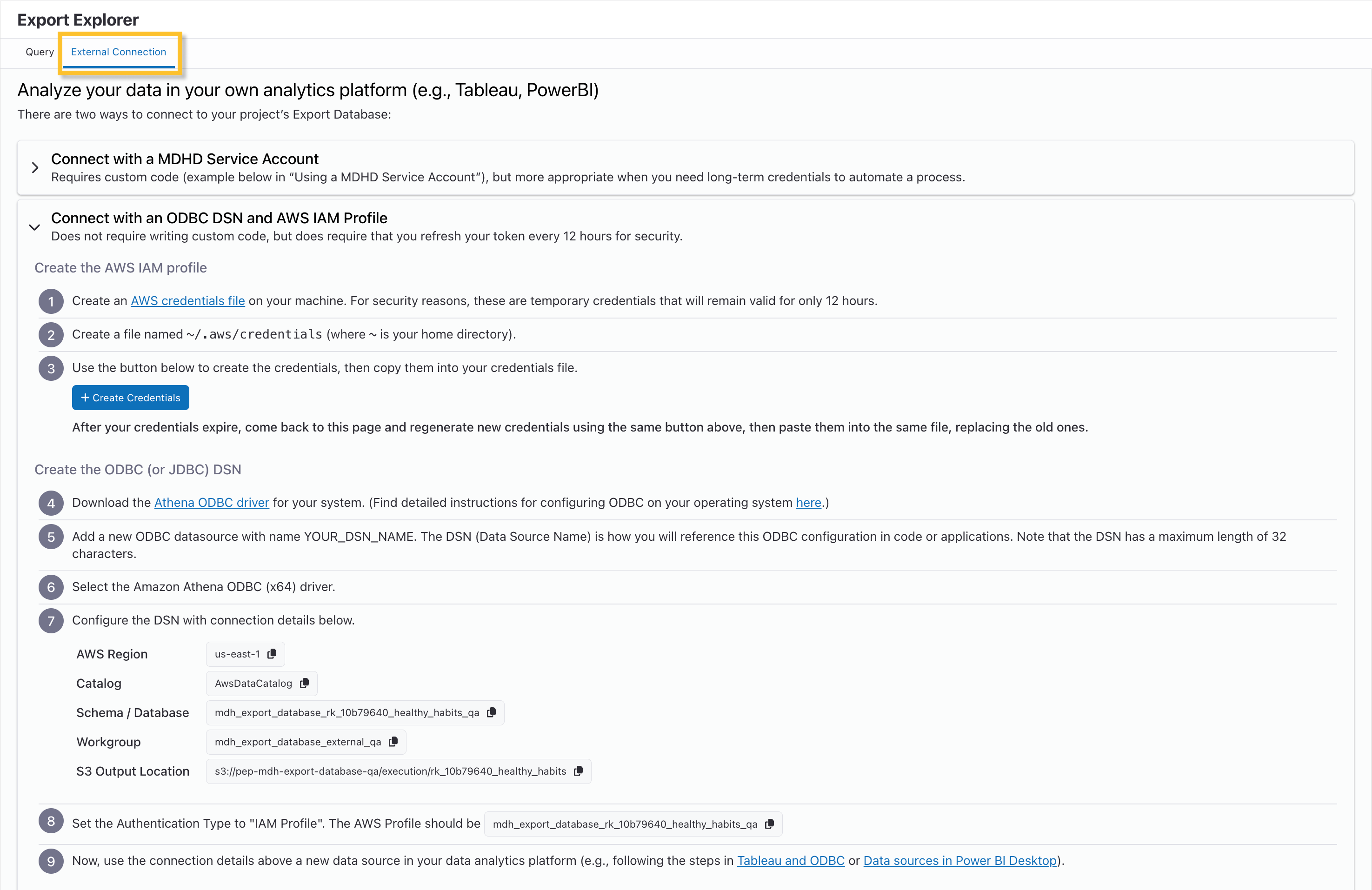
There are two ways to connect your project's export database to an external data analysis application such as PowerBI, Tableau, RStudio, or Jupyter Notebooks:
- If you need persistent access to the database, you can use a Service Account and custom code to facilitate automated data processes.
- If you only need short-term or occasional access, or are unable to maintain custom code, you can use an IWS IAM profile with ODBC or JDBC Amazon Athena libraries.
For specific instructions on how to create an external connection, navigate to the External Connection tab at the top of the Export Explorer tab within your project and select the connection method you prefer.
Troubleshooting
See Export Explorer: Troubleshooting article for more details on troubleshooting the Export Explorer.