
If your survey is intended to generate a score or calculate complex value based on multiple answers, you can use a simple expression language to add these directly to your survey using calculated fields. They can be used to:
- Calculate a score such as PHQ-9 or BMI
- Randomize participants
- Combine text answers into a longer string
- Calculate a custom date
Calculated fields are only supported in the Standard Survey type.
Calculated fields in a survey perform their calculations using the MyDataHelps Common Expression Language. This language is designed to be simple to use and powerful, allowing access to current and previous survey answers, with a wide range of types, operators, and functions. Using calculated fields in a survey is an alternative to performing some of these same calculations in a schedule triggered after a survey is complete.
Properties
Calculated fields have the following properties:
| PROPERTY | FUNCTION | EXAMPLES |
| Result Identifier |
The identifier of this field, for reference in survey results and other calculated fields. |
phq9_score bmi |
| Description | A description of this field, for internal reference. | The participant's calculated score. |
| Return Type |
The type of value expected to be returned by the calculation. See Common Expression Language[LINK] for more details on types. |
Text Timestamp |
| Populates |
Whether this calculated field will populate a Custom or Demographic Field. Note: The `Return Type` must be compatible for the field to be available as an option. E.g. a "Decimal" return type cannot populate a Date field. |
StudyArm SurgeryDate |
| Expression |
The calculation of the field's result, using Common Expression Language[LINK]. |
round(weight / ((height / 100) * (height / 100)), 1) |
Output and Access
The output of calculated fields are accessible in the same way as survey answers. They are incorporated into survey results, making them visible when viewing participant survey results, can be accessed with expressions, and can be found in survey results exports, as well as the survey dictionary export.
The StepIdentifier of calculated fields is always "_calculated_fields".
Calculated fields can reference other calculated fields in the same survey. Fields are calculated in the order they are shown in the survey editor, so fields which use other fields as references must be ordered carefully.
Creating a Calculated Field
-
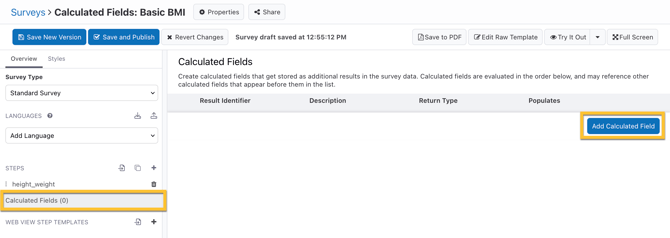
From the Survey Editor, click on "Calculated Fields" below the list of Steps in the left pane, then "Add Calculated Field".
-
Enter a result identifier. The identifier will be associated with the field's output in survey results, so it must be unique in this survey and should conform to the same naming convention as your step and question identifiers.
- Optionally, add a description for what this field represents.
- Select a return type, to match the expected output of your calculation. This can be any type supported by the Common Expression Language[LINK] such as `Integer` or `Timestamp`, or a list containing one of the other types (i.e. `List of Text strings`).
- Optionally, select a custom or demographic field to populate. As with survey questions, your selected return type must match the type of this field (i.e. you must select a `Date` return type to populate a date field).
- Write an expression which will calculate the field output. This can be as simple as `field1 + field2`, or more complex including logical operators. See Examples to get started and Common Expression Language for full details on how to write them.
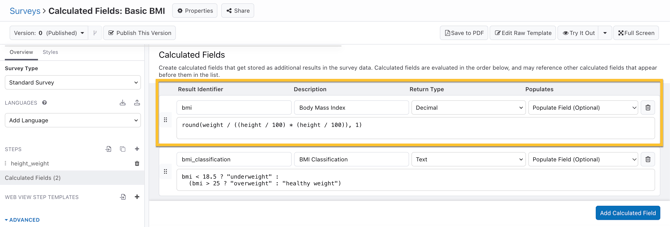
- Save a new version of the survey to preserve your changes.
Managing Calculated Fields
Calculated fields can be re-ordered using the "grips" on the left. Use the "trash can" icon on the right to delete a calculated field. Ensure you save a new version of the survey after making your changes.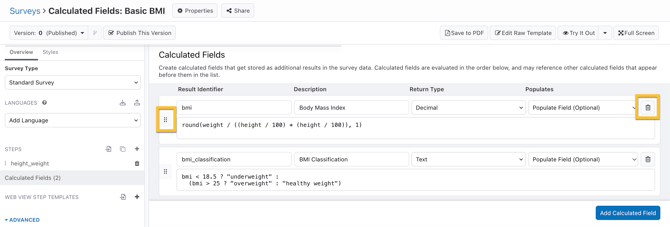
Examples
To understand how calculated fields can be used, here are some examples which illustrate a range of use cases.
Simple Scoring
To calculate a simple score such as a PHQ9, add together the appropriate step/result identifiers in the format `identifier1 + identifier2`.

To calculate numerical scores from survey answers, ensure all your answer values are numeric.
Body Mass Index (BMI)
To calculate a more complex value such as BMI, you can combine operators such as parentheses with a round function to output an appropriate and readable value.
Once you have a numerical value, you can use comparators to classify it into a text value.
Randomizing Participants
Calculated fields offer multiple methods to randomize values, useful for functions such as determining which arm of a study a participant will join. One method is using a `random.pick()` function to choose randomly from a list.
In order to generate a reproducible (deterministic) result, you must include a known seed value in your randomization such as "ParticipantID". If reproducibility is not required, no seed value is needed.